How to place the orders with your broker
Signals arrive after the close and are executed at the next open. There are two ways to place them. Pick one and keep it.
A · at the open (OPG). Takes part in the auction and gets the official opening price. Placed that same morning, before 9:30 New York time.
B · market (GTC). Placed the night before, filled on its own when the market opens. Does not take part in the auction.
Before you start, a warning that applies to all four platforms. They all open the form with a default quantity —usually 100 shares—. That quantity has nothing to do with the alert: delete it and type the right one. An order left with the default quantity executes perfectly and buys twenty times what it should.
This is not broker or investment advice. Each person trades in their own account.
Interactive Brokers on the web
This is the shortest route: a single screen, nothing to install.
- In the top menu, Trade, then Order Ticket.
- Stay on the Stocks tab.
- In SYMBOL, type the instrument's symbol.
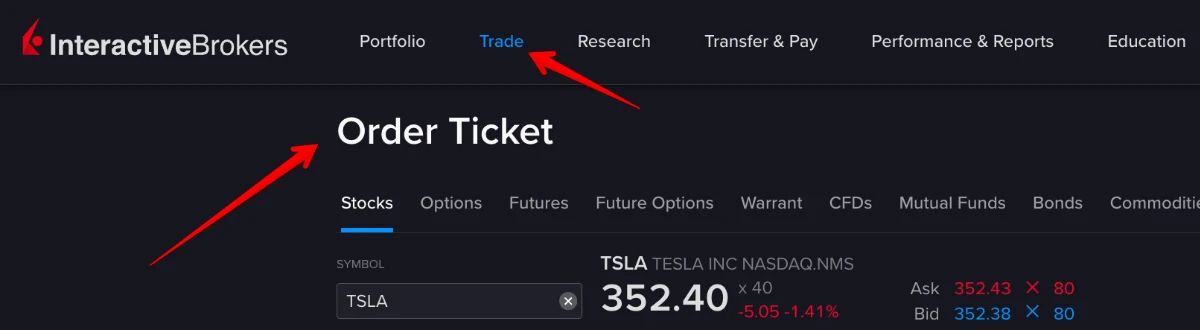
- The order row is at the bottom. In ACTION, Buy. In QUANTITY, delete the quantity that is already there and type the one from the alert, with Shares next to it.
- In ORDER TYPE, choose Market.
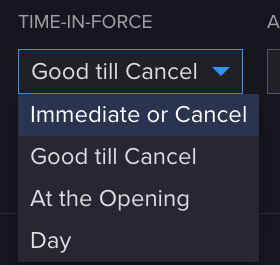
- In TIME-IN-FORCE, choose:
- At the Opening for option A (opening price). Place it that same morning, before 9:30 New York time. - Good till Cancel for option B (place it and forget it), the night before.
- ALL OR NONE stays on No.
- Submit. To see the detail first, Preview.

Do not look for "at the open" among the order types: at IBKR it is not a type but a time in force, so it lives in the TIME-IN-FORCE dropdown. Among the types you will only find the closing ones (Market on Close, Limit on Close).
Interactive Brokers Desktop
- Top left, in Search, type the instrument's symbol.
- The right-hand panel shows the instrument with its price and two buttons: Buy Order and Sell Order. Click Buy Order.
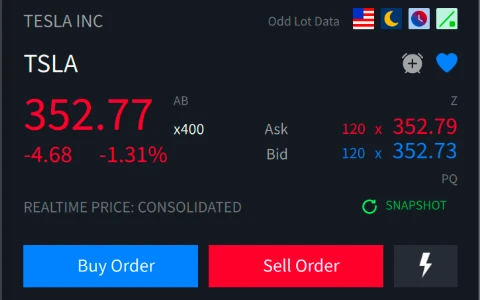
- The Order Ticket opens, with the Buy Order tab already selected. It has three sections.
- Under QUANTITY, the Quantity field comes pre-filled: delete it and type the one from the alert. Next to it, leave Shares.
- Under DESCRIPTION, set Order Type to Market. Destination stays on SMART.
- Under TIME IN FORCE, choose OPG for option A, or GTC for option B.
- Submit Buy Order. To see the detail first, Preview.
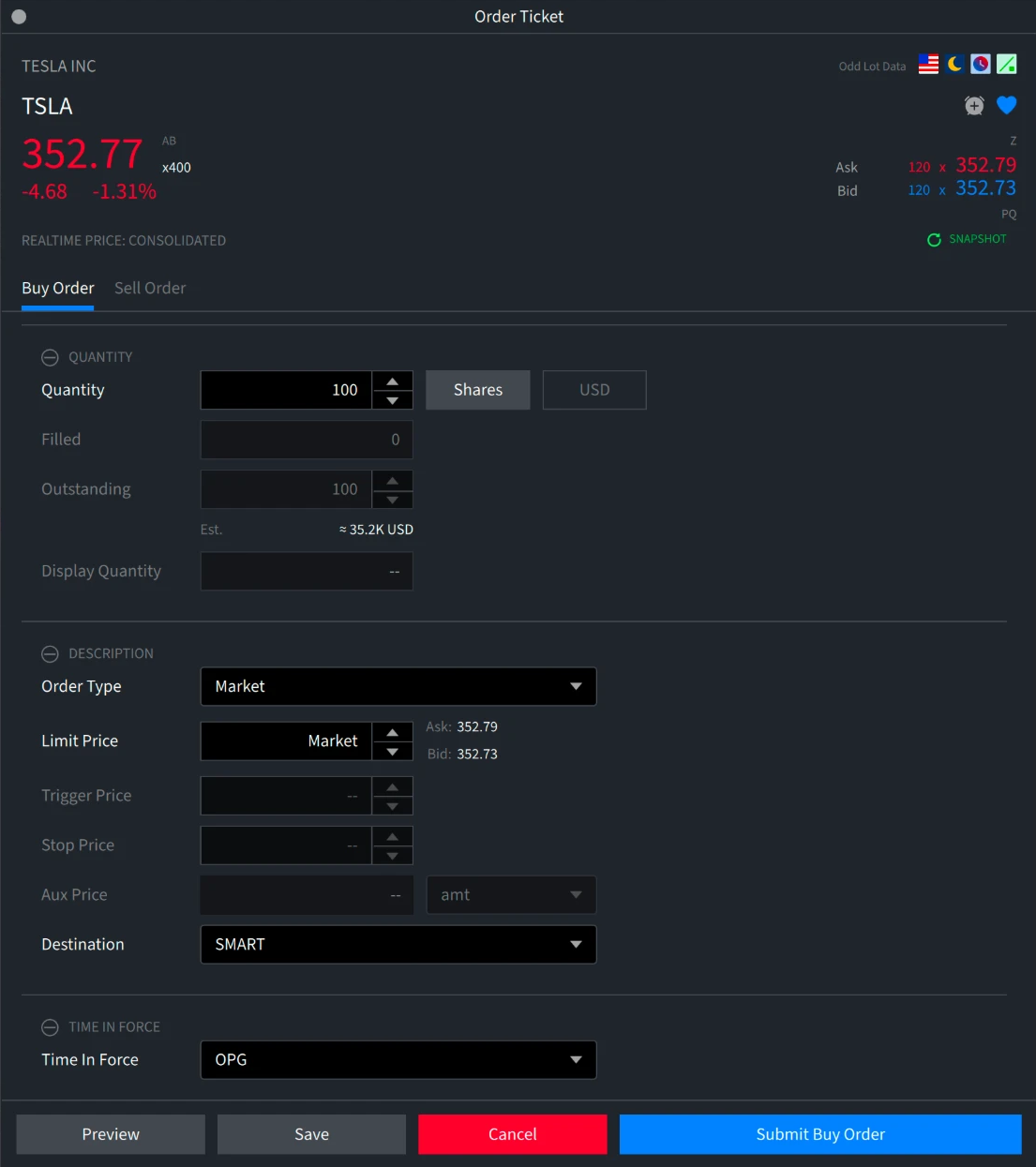
OPG is the same "At the Opening" as on the web, under its short name. And do not look for it under Order Type: there you will only find Market, Limit and the closing ones.
Interactive Brokers · TWS
The classic desktop platform. It is the busiest of the three, but the route is short.
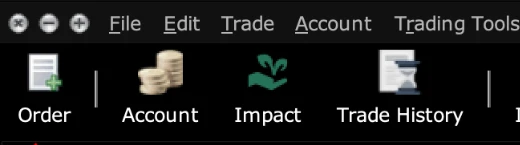
- On the top toolbar, the Order button, first on the left.
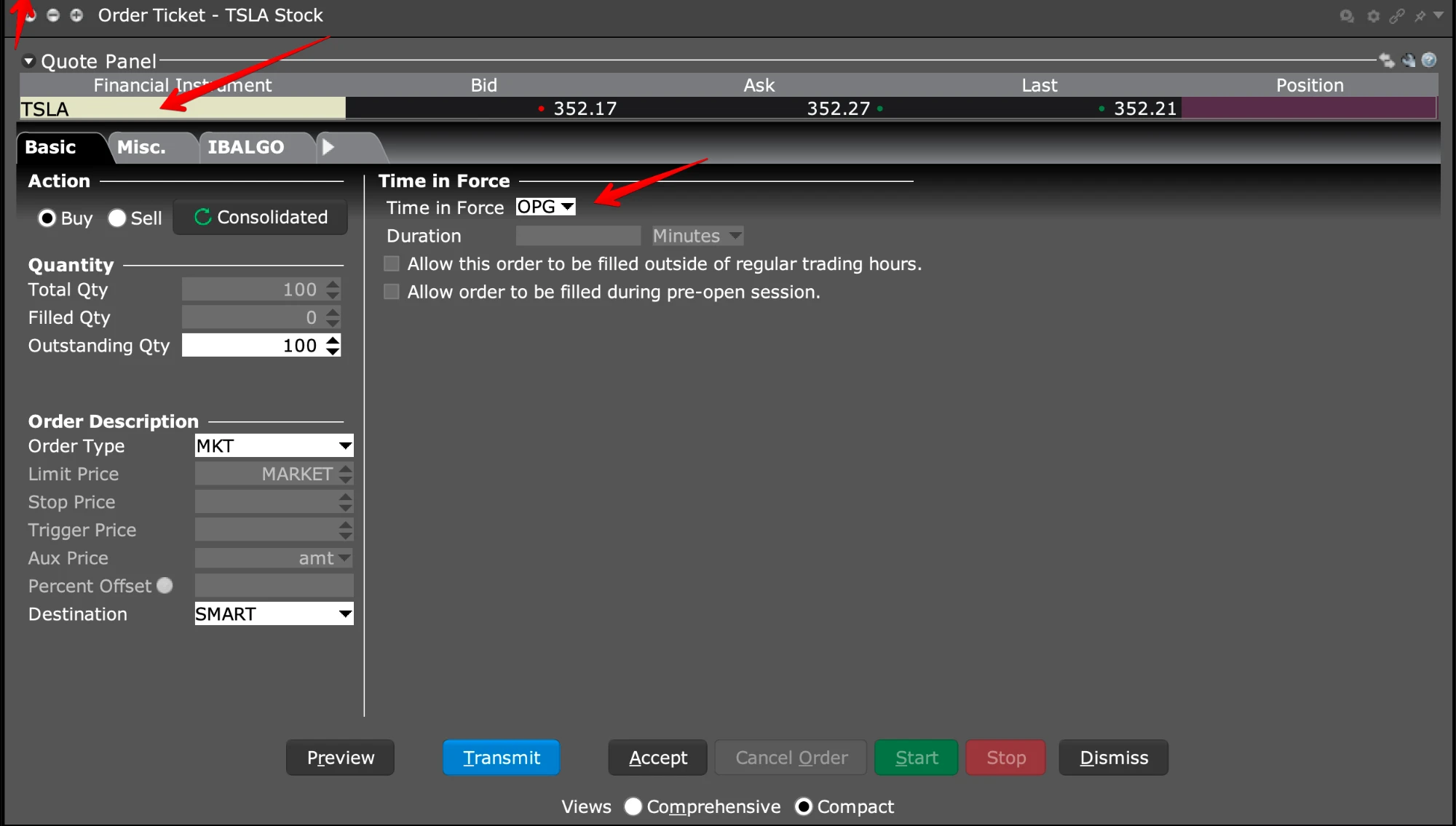
- The Order Ticket opens. In the yellow box, type the symbol and choose Stock.
- In Action, Buy.
- In Quantity, change Total Qty: it comes with a default that is not yours.
- In Order Description, set Order Type to MKT and Destination to SMART.
- In Time in Force, choose OPG for option A, or GTC for B.
- Transmit. To see the detail first, Preview.
thinkorswim · placing the order
thinkorswim has no at-the-open order: its types include Market on Close and Limit on Close, but not Market on Open. Only option B exists here.
- Go to the Trade tab, top left.
- In the box on the left, type the symbol.
- Click the price shown under Last X. The Order Entry panel opens at the bottom.

- On the green Order Entry row, check: Side set to BUY, Order set to MARKET, and in Qty change the quantity that is already there to the one from the alert.
- In the TIF column, choose DAY.
- Click Confirm and Send.

Watch the time in force. thinkorswim does not accept a MARKET order with GTC: if you leave it on GTC, the message "MARKET order must have DAY time-in-force" appears and the send button stays disabled. It has to be DAY.

A DAY order placed in the evening is good for the next session, which is the next one that opens. If for any reason it is not filled, it cancels itself at the close and does not linger.
Schwab on the web
- In the top menu, Trade, then All-In-One Trade Ticket.
- At the top of the screen you see the three steps: 1. Enter Order, 2. Verify Order, 3. Order Received. The order is only sent at the third.

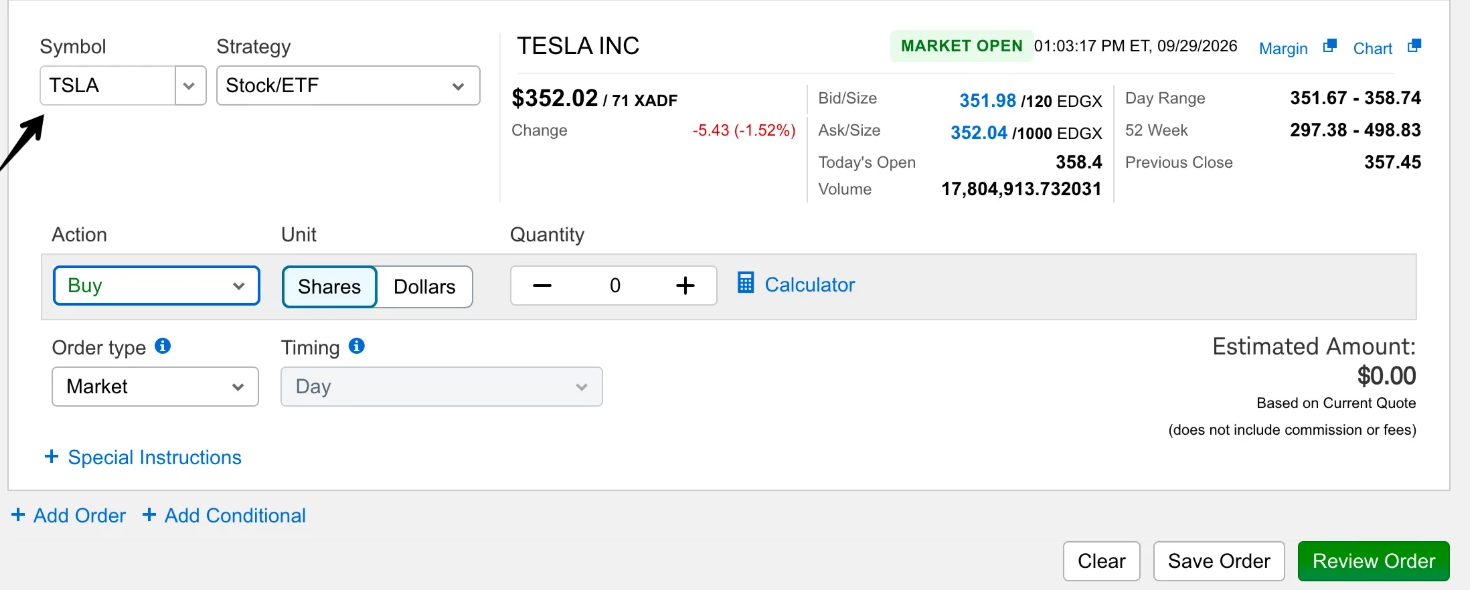
- In Symbol, type the symbol. In Strategy, leave Stock/ETF.
- In Action, Buy. In Unit, Shares. In Quantity, replace the value shown with the quantity from the alert.
- In Order type, choose Market. The Timing field stays on Day and cannot be changed: at Schwab, as in thinkorswim, a market order is always a day order.
- Click Review Order.
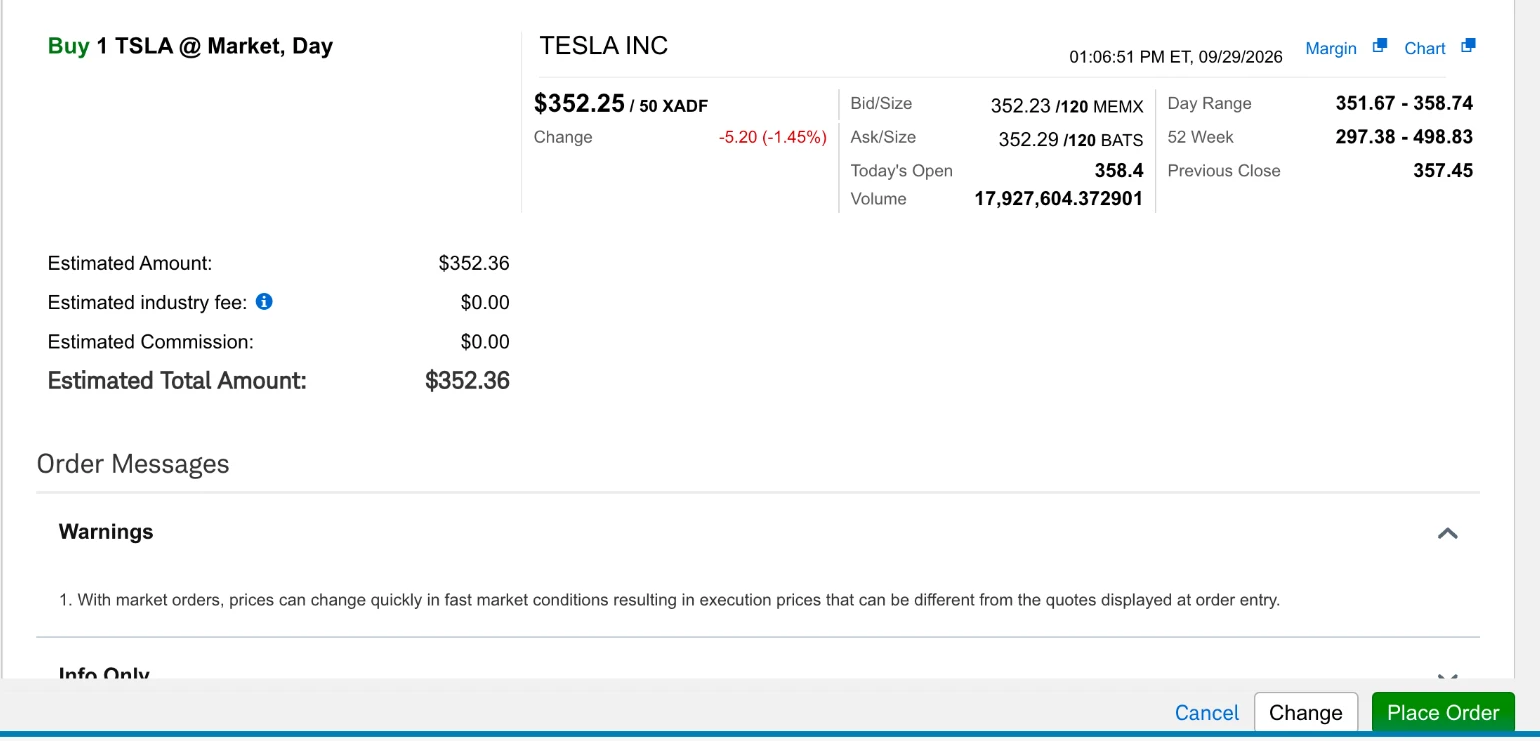
- The 2. Verify Order screen appears. Top left is the summary in one line: Buy 1 TSLA @ Market, Day. Check that it says what you meant to enter.
- Below it is the Estimated Total Amount, and a warning from Schwab: with market orders the execution price can differ from the one shown on screen. It is the same thing explained here, in their words.
- Place Order. Only then is the order sent, and the screen moves to 3. Order Received.
What the difference is between A and B
Measured over 48 real purchases from the account that publishes its result live, against each day's official opening price:
- Half of the orders got exactly the opening price.
- The typical difference was zero.
- On average the execution came in slightly below the open (0.03 %), that is, marginally in favour.
- The worst case against was 0.69 %, on a thinly traded instrument.
On a thousand dollars, 0.69 % is seven dollars: that is the worst case, not the usual one.
If you do not have an account yet
The two platforms in this guide are the ones Ecliptic Alerts uses. You can open an account here:
If you open an account through those links, Ecliptic Alerts receives compensation from the broker. Nothing changes for you, and this is not a recommendation: any broker with direct access to the US market works just as well.
Information, not investment advice or a personalized recommendation; Ecliptic Alerts is not registered with the SEC, the CNV or any other regulator. Not available to residents of the UK, EEA, Australia or India (Terms, section 4). Past results, simulated or real, do not guarantee future results. @eclipticalerts t.me/eclipticalerts