Cómo cargar las órdenes en su broker
Las señales llegan después del cierre y se ejecutan en la apertura siguiente. Hay dos formas de cargarlas. Elija una y manténgala.
A · a la apertura (OPG). Entra en la subasta y obtiene el precio oficial de apertura. Se carga esa misma mañana, antes de las 9:30 de Nueva York.
B · a mercado (GTC). Se carga la noche anterior y se ejecuta sola al abrir. No participa de la subasta.
Antes de empezar, una advertencia que vale para las cuatro plataformas. Todas abren el formulario con una cantidad puesta por defecto —habitualmente 100 acciones—. Esa cantidad no tiene nada que ver con el aviso: hay que borrarla y escribir la que corresponde. Una orden con la cantidad por defecto se ejecuta perfecto y compra veinte veces lo que había que comprar.
Esto no es una recomendación de broker ni de inversión. Cada persona opera en su propia cuenta.
Interactive Brokers por la web
Es el camino más corto: una sola pantalla, sin instalar nada.
- En el menú de arriba, Trade, y después Order Ticket.
- Quede en la pestaña Stocks.
- En SYMBOL, escriba el símbolo del papel.
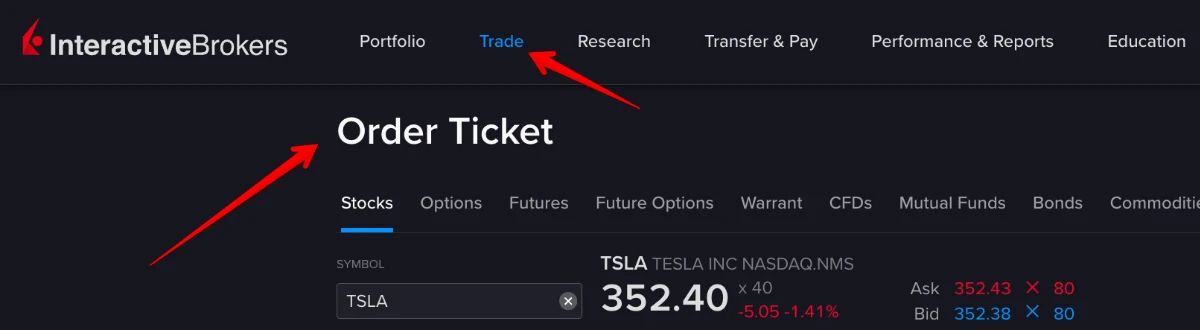
- Abajo de todo está la fila de la orden. En ACTION, Buy. En QUANTITY, borre la cantidad que viene puesta y escriba la del aviso, con Shares al lado.
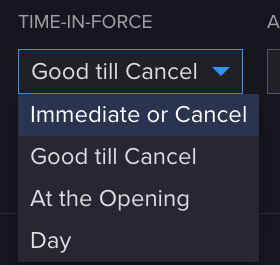
- En ORDER TYPE, elija Market.
- En TIME-IN-FORCE, elija:
- At the Opening para la opción A (precio de apertura). Cárguela esa misma mañana, antes de las 9:30 de Nueva York. - Good till Cancel para la opción B (cargar y olvidarse), la noche anterior.
- ALL OR NONE queda en No.
- Submit. Si quiere ver el detalle antes, Preview.

No busque "a la apertura" entre los tipos de orden: en IBKR no es un tipo sino una vigencia, así que vive en el desplegable TIME-IN-FORCE. Entre los tipos solo están las de cierre (Market on Close, Limit on Close).
Interactive Brokers Desktop
- Arriba a la izquierda, en Search, escriba el símbolo del papel.
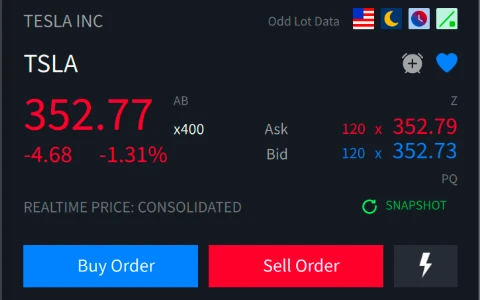
- En el panel de la derecha aparece el papel con su precio y dos botones: Buy Order y Sell Order. Haga clic en Buy Order.
- Se abre el Order Ticket, con la pestaña Buy Order ya elegida. Tiene tres secciones.
- En QUANTITY, el campo Quantity viene con una cantidad puesta: bórrela y escriba la del aviso. Al lado, deje Shares.
- En DESCRIPTION, ponga Order Type en Market. Destination queda en SMART.
- En TIME IN FORCE, elija OPG para la opción A, o GTC para la opción B.
- Submit Buy Order. Si quiere ver el detalle antes, Preview.
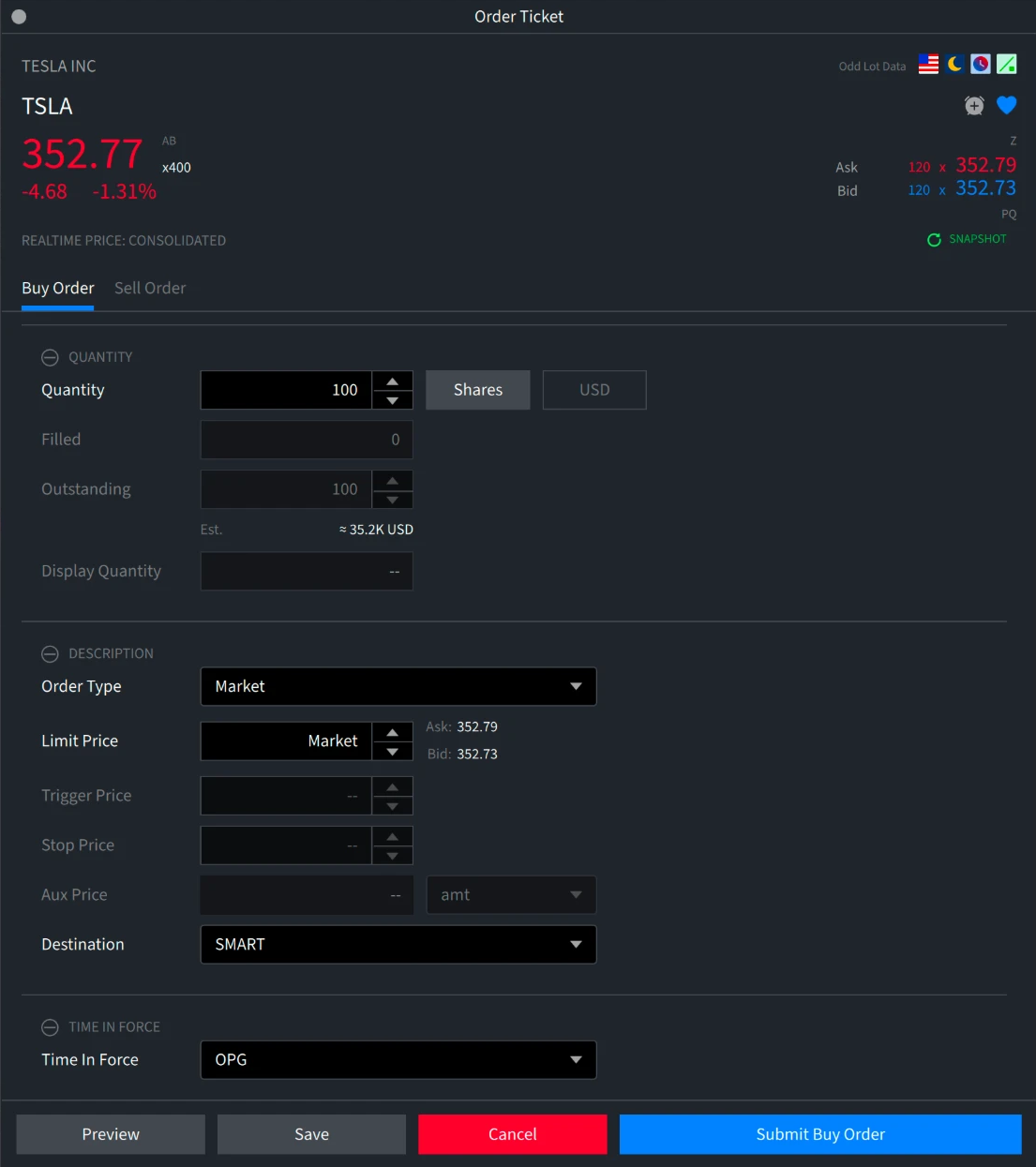
OPG es el mismo "At the Opening" de la web, con el nombre corto. Y no lo busque en Order Type: ahí solo están Market, Limit y las de cierre.
Interactive Brokers · TWS
La plataforma clásica de escritorio. Es la más cargada de las tres, pero el camino es corto.
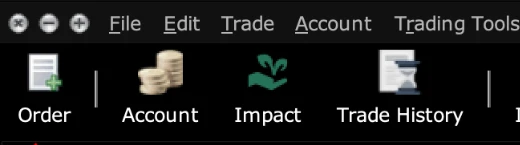
- En la barra de arriba, el botón Order, el primero de la izquierda.
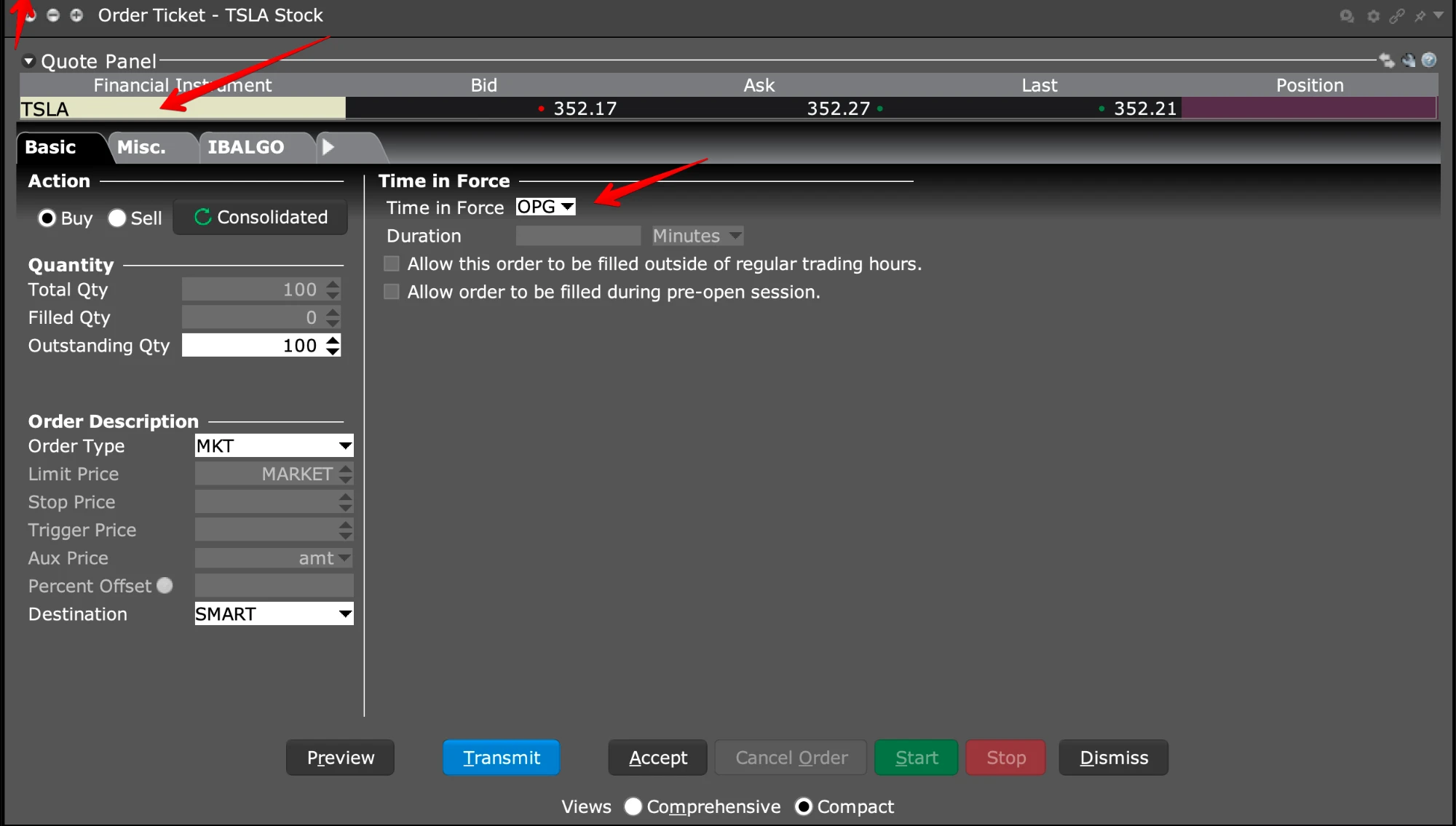
- Se abre el Order Ticket. En el casillero amarillo, escriba el símbolo y elija Stock.
- En Action, Buy.
- En Quantity, cambie Total Qty: viene con un valor por defecto que no es el suyo.
- En Order Description, Order Type en MKT, y Destination en SMART.
- En Time in Force, elija OPG para la opción A, o GTC para la B.
- Transmit. Si quiere ver el detalle antes, Preview.
thinkorswim · cargar la orden
thinkorswim no tiene orden a la apertura: sus tipos incluyen Market on Close y Limit on Close, pero no Market on Open. Acá solo existe la opción B.
- Vaya a la pestaña Trade, arriba a la izquierda.
- En el casillero de la izquierda, escriba el símbolo del papel.
- Haga clic sobre el precio que figura en Last X. Abajo de todo se abre el panel Order Entry.

- En la fila verde del Order Entry, revise: Side en BUY, Order en MARKET, y en Qty cambie la cantidad que viene puesta por la del aviso.
- En la columna TIF, elija DAY.
- Haga clic en Confirm and Send.

Cuidado con la vigencia. thinkorswim no acepta una orden MARKET con vigencia GTC: si la deja en GTC, aparece el aviso "MARKET order must have DAY time-in-force" y el botón de enviar queda deshabilitado. Tiene que ser DAY.

Una orden DAY cargada por la noche vale para la rueda siguiente, que es la próxima que abre. Si por algún motivo no llegara a ejecutarse, se cancela sola al cierre y no queda dando vueltas.
Schwab por la web
- En el menú de arriba, Trade, y después All-In-One Trade Ticket.
- Arriba de la pantalla aparece el recorrido en tres pasos: 1. Enter Order, 2. Verify Order, 3. Order Received. Recién en el tercero la orden queda enviada.

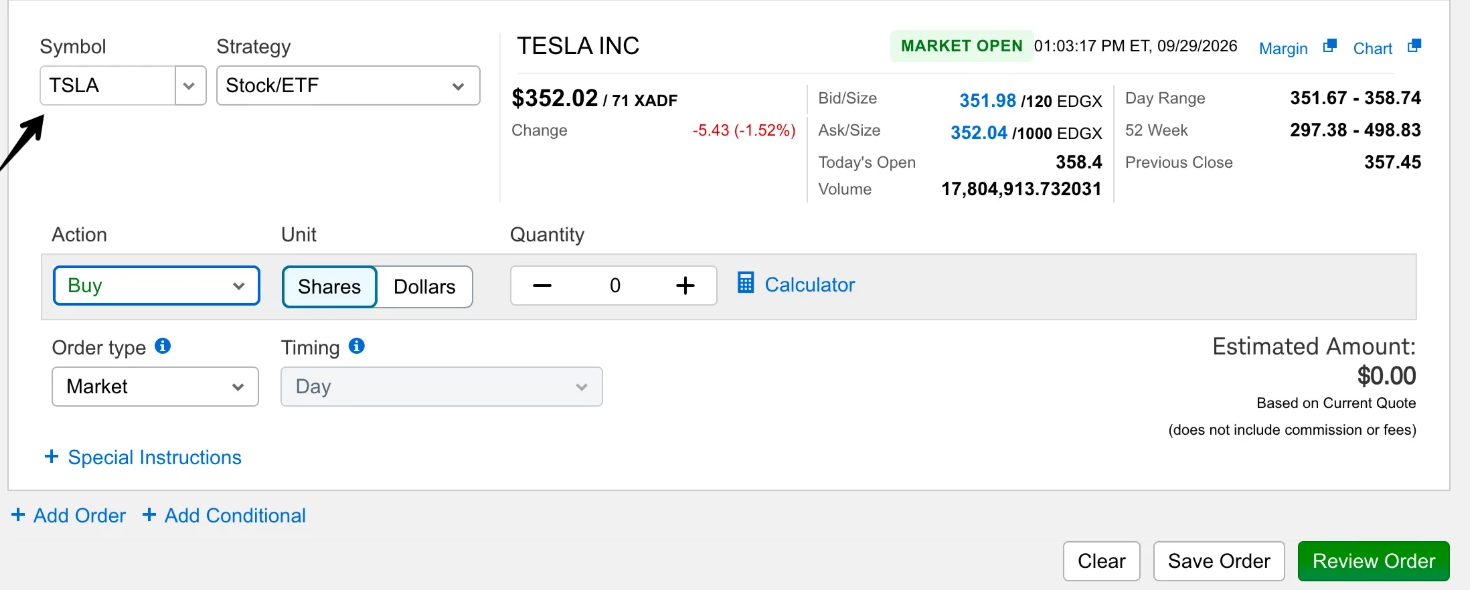
- En Symbol, escriba el símbolo. En Strategy, deje Stock/ETF.
- En Action, Buy. En Unit, Shares. En Quantity, reemplace el valor que aparece por la cantidad del aviso.
- En Order type, elija Market. El campo Timing queda en Day y no deja elegir otra cosa: en Schwab, igual que en thinkorswim, una orden a mercado es siempre del día.
- Haga clic en Review Order.
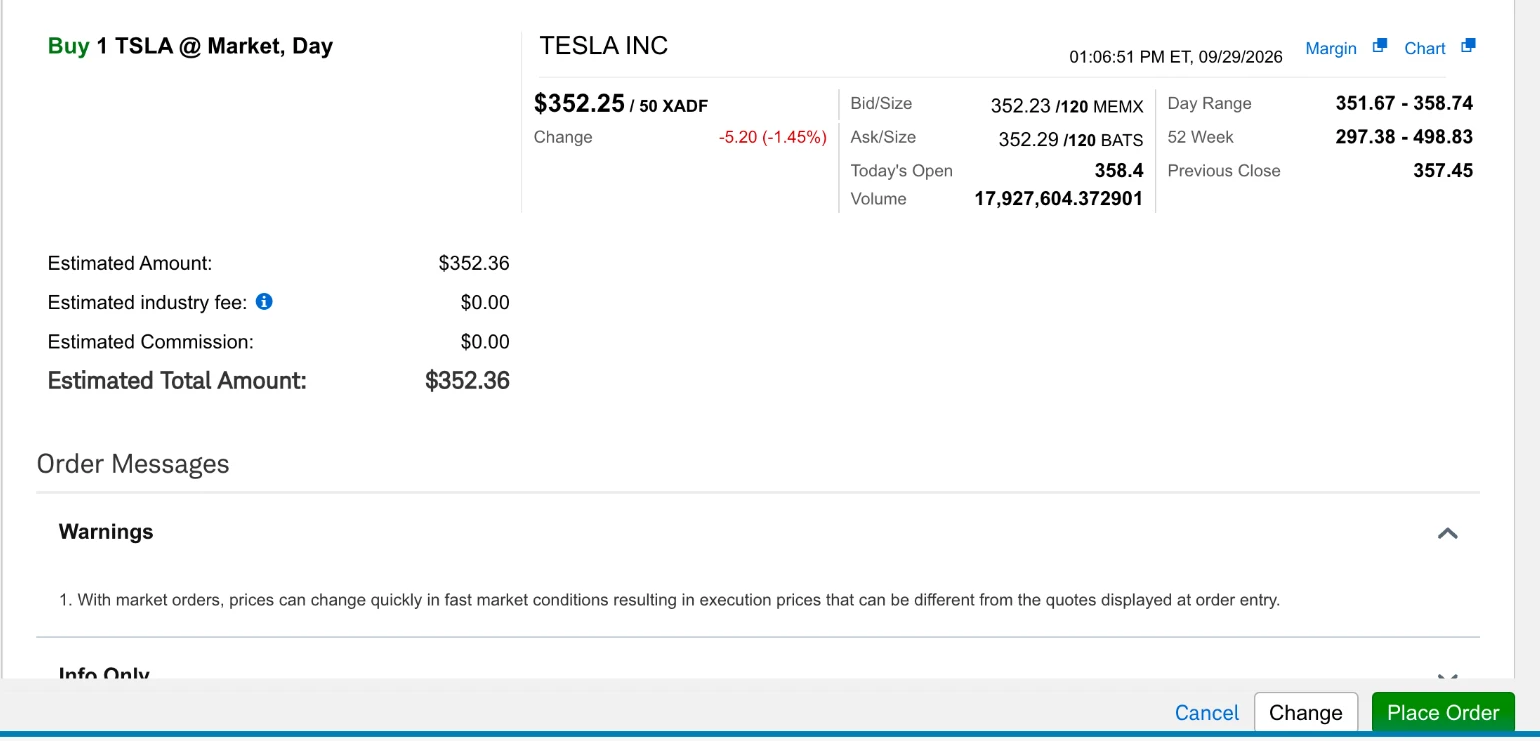
- Aparece la pantalla 2. Verify Order. Arriba a la izquierda está el resumen en una línea: Buy 1 TSLA @ Market, Day. Revise que diga lo que usted quiso cargar.
- Más abajo figura el Estimated Total Amount, y una advertencia de Schwab: con órdenes a mercado el precio de ejecución puede diferir del que se ve en pantalla. Es lo mismo que explicamos acá, dicho por ellos.
- Place Order. Recién ahí la orden queda enviada, y pasa a 3. Order Received.
Qué diferencia hay entre A y B
Medido sobre 48 compras reales de la cuenta que publica su resultado en vivo, comparadas contra el precio de apertura oficial de cada día:
- La mitad de las órdenes obtuvo exactamente el precio de apertura.
- La diferencia típica fue cero.
- En promedio la ejecución quedó apenas por debajo de la apertura (0,03 %), es decir levemente a favor.
- El peor caso en contra fue de 0,69 %, en un papel poco negociado.
Sobre mil dólares, 0,69 % son siete dólares: ese es el peor caso, no el habitual.
Si todavía no tiene cuenta
Las dos plataformas de esta guía son las que utiliza Ecliptic Alerts. Puede abrir cuenta acá:
Si abre cuenta por esos enlaces, Ecliptic Alerts recibe una compensación del broker. No cambia nada para usted, y no es una recomendación: cualquier broker con acceso directo al mercado de Estados Unidos sirve igual.
How to place the orders with your broker
Signals arrive after the close and are executed at the next open. There are two ways to place them. Pick one and keep it.
A · at the open (OPG). Takes part in the auction and gets the official opening price. Placed that same morning, before 9:30 New York time.
B · market (GTC). Placed the night before, filled on its own when the market opens. Does not take part in the auction.
Before you start, a warning that applies to all four platforms. They all open the form with a default quantity —usually 100 shares—. That quantity has nothing to do with the alert: delete it and type the right one. An order left with the default quantity executes perfectly and buys twenty times what it should.
This is not broker or investment advice. Each person trades in their own account.
Interactive Brokers on the web
This is the shortest route: a single screen, nothing to install.
- In the top menu, Trade, then Order Ticket.
- Stay on the Stocks tab.
- In SYMBOL, type the instrument's symbol.
- The order row is at the bottom. In ACTION, Buy. In QUANTITY, delete the quantity that is already there and type the one from the alert, with Shares next to it.
- In ORDER TYPE, choose Market.
- In TIME-IN-FORCE, choose:
- At the Opening for option A (opening price). Place it that same morning, before 9:30 New York time. - Good till Cancel for option B (place it and forget it), the night before.
- ALL OR NONE stays on No.
- Submit. To see the detail first, Preview.
Do not look for "at the open" among the order types: at IBKR it is not a type but a time in force, so it lives in the TIME-IN-FORCE dropdown. Among the types you will only find the closing ones (Market on Close, Limit on Close).
Interactive Brokers Desktop
- Top left, in Search, type the instrument's symbol.
- The right-hand panel shows the instrument with its price and two buttons: Buy Order and Sell Order. Click Buy Order.
- The Order Ticket opens, with the Buy Order tab already selected. It has three sections.
- Under QUANTITY, the Quantity field comes pre-filled: delete it and type the one from the alert. Next to it, leave Shares.
- Under DESCRIPTION, set Order Type to Market. Destination stays on SMART.
- Under TIME IN FORCE, choose OPG for option A, or GTC for option B.
- Submit Buy Order. To see the detail first, Preview.
OPG is the same "At the Opening" as on the web, under its short name. And do not look for it under Order Type: there you will only find Market, Limit and the closing ones.
Interactive Brokers · TWS
The classic desktop platform. It is the busiest of the three, but the route is short.
- On the top toolbar, the Order button, first on the left.
- The Order Ticket opens. In the yellow box, type the symbol and choose Stock.
- In Action, Buy.
- In Quantity, change Total Qty: it comes with a default that is not yours.
- In Order Description, set Order Type to MKT and Destination to SMART.
- In Time in Force, choose OPG for option A, or GTC for B.
- Transmit. To see the detail first, Preview.
thinkorswim · placing the order
thinkorswim has no at-the-open order: its types include Market on Close and Limit on Close, but not Market on Open. Only option B exists here.
- Go to the Trade tab, top left.
- In the box on the left, type the symbol.
- Click the price shown under Last X. The Order Entry panel opens at the bottom.
- On the green Order Entry row, check: Side set to BUY, Order set to MARKET, and in Qty change the quantity that is already there to the one from the alert.
- In the TIF column, choose DAY.
- Click Confirm and Send.
Watch the time in force. thinkorswim does not accept a MARKET order with GTC: if you leave it on GTC, the message "MARKET order must have DAY time-in-force" appears and the send button stays disabled. It has to be DAY.
A DAY order placed in the evening is good for the next session, which is the next one that opens. If for any reason it is not filled, it cancels itself at the close and does not linger.
Schwab on the web
- In the top menu, Trade, then All-In-One Trade Ticket.
- At the top of the screen you see the three steps: 1. Enter Order, 2. Verify Order, 3. Order Received. The order is only sent at the third.
- In Symbol, type the symbol. In Strategy, leave Stock/ETF.
- In Action, Buy. In Unit, Shares. In Quantity, replace the value shown with the quantity from the alert.
- In Order type, choose Market. The Timing field stays on Day and cannot be changed: at Schwab, as in thinkorswim, a market order is always a day order.
- Click Review Order.
- The 2. Verify Order screen appears. Top left is the summary in one line: Buy 1 TSLA @ Market, Day. Check that it says what you meant to enter.
- Below it is the Estimated Total Amount, and a warning from Schwab: with market orders the execution price can differ from the one shown on screen. It is the same thing explained here, in their words.
- Place Order. Only then is the order sent, and the screen moves to 3. Order Received.
What the difference is between A and B
Measured over 48 real purchases from the account that publishes its result live, against each day's official opening price:
- Half of the orders got exactly the opening price.
- The typical difference was zero.
- On average the execution came in slightly below the open (0.03 %), that is, marginally in favour.
- The worst case against was 0.69 %, on a thinly traded instrument.
On a thousand dollars, 0.69 % is seven dollars: that is the worst case, not the usual one.
If you do not have an account yet
The two platforms in this guide are the ones Ecliptic Alerts uses. You can open an account here:
If you open an account through those links, Ecliptic Alerts receives compensation from the broker. Nothing changes for you, and this is not a recommendation: any broker with direct access to the US market works just as well.
Información, no asesoramiento financiero ni recomendación personalizada; Ecliptic Alerts no está registrado ante la CNV, la SEC ni otro regulador. Servicio disponible solo para residentes de los países admitidos (Términos, sección 4). Los resultados pasados, simulados o reales, no garantizan resultados futuros.
Information, not investment advice or a personalized recommendation; Ecliptic Alerts is not registered with the SEC, the CNV or any other regulator. Not available to residents of the UK, EEA, Australia or India (Terms, section 4). Past results, simulated or real, do not guarantee future results. @eclipticalerts t.me/eclipticalerts